Appointments
Give customers a clear way to book time with you
Bring service options, staff availability and booking details into one appointment journey. Customers choose the relevant service and time; your business sees the booking and its actual payment and lifecycle status.
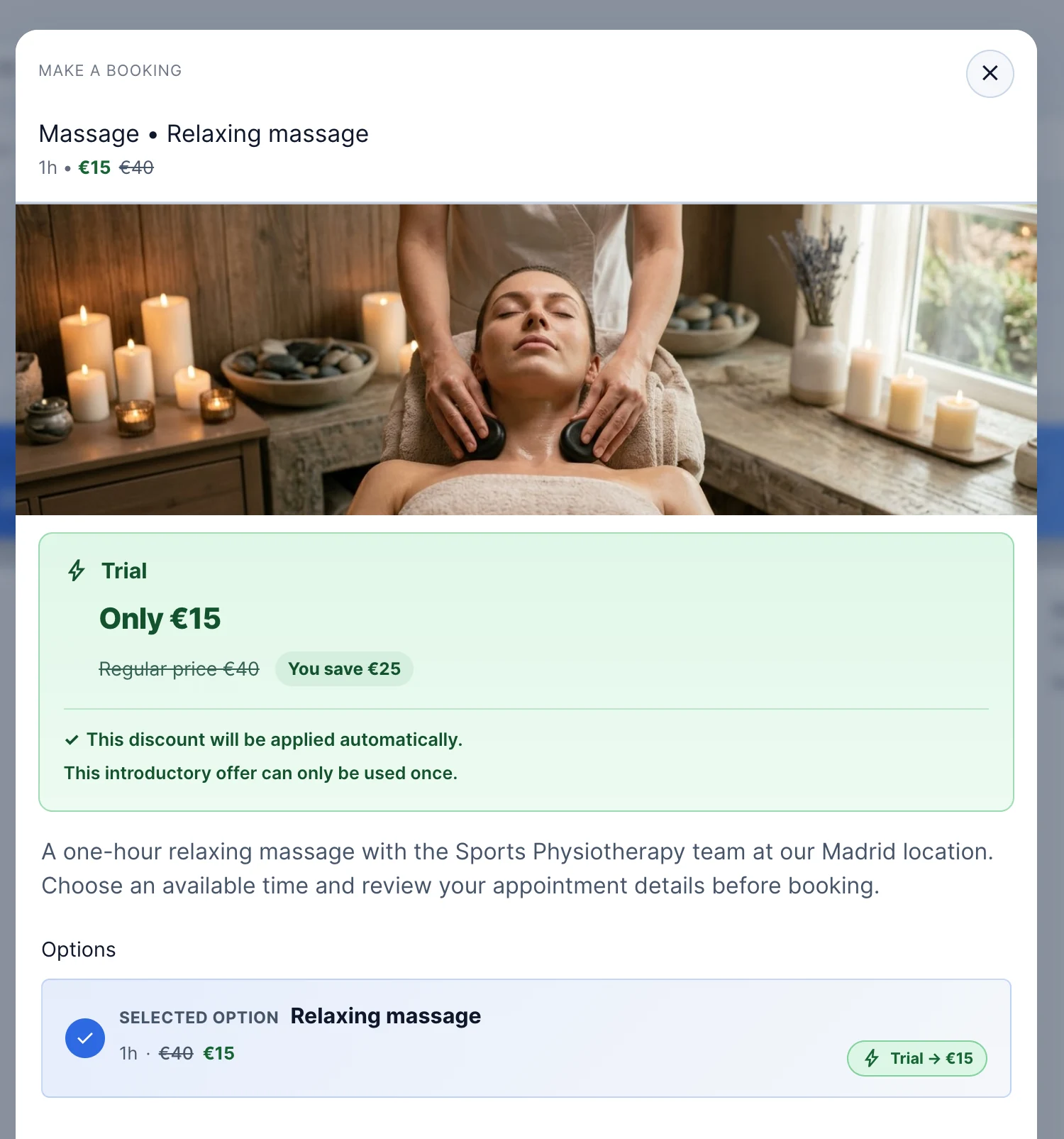
The appointment starts before the customer arrives
Choosing a service, finding a suitable time and keeping the booking details together can create work before you deliver anything. ServEase connects the customer’s booking choices with the staff and availability needed for the appointment.
An opening must fit the appointment
ServEase checks that the selected option belongs to the service, the location and staff are eligible, and the time fits availability, duration and buffers. Relevant participant limits are checked too. Availability shown while browsing is rechecked when the customer submits.
How customers book
Discover: Browse the studio’s service overview, list or timetable.
Choose: Select the massage option, location and relevant staff choice where offered.
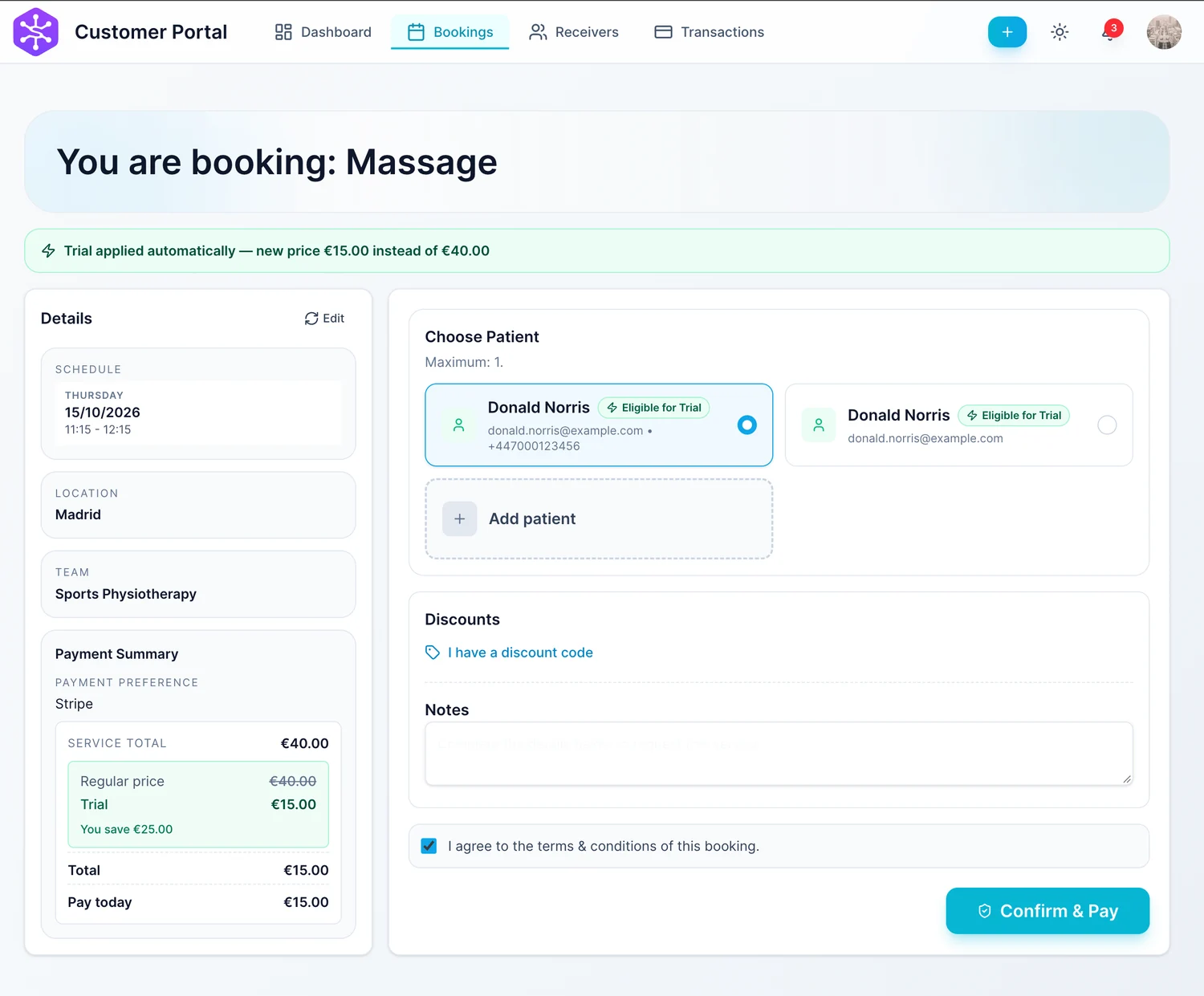
Availability: Choose a suitable time; provide the person receiving the service where required.
Submit: Review details and the configured price/payment path.
Actual result: A valid submission creates the booking. Its displayed status may still require acceptance or payment.
Your brand on the outside
Your website. Your brand. ServEase underneath.
Three fictional businesses, several completely different customer-facing views — all using genuine ServEase Widgets. Match the booking experience to the business instead of sending customers to a generic third-party page.
Wellness · Service overview · warm custom branding
How your business works
Define your services and options, connect the teams and locations that deliver them, and set availability and payment rules. Make the intended offerings visible to customers. Use Admin to review bookings, customer context, calendar and financial status; staff with appropriate access can view their assigned work.
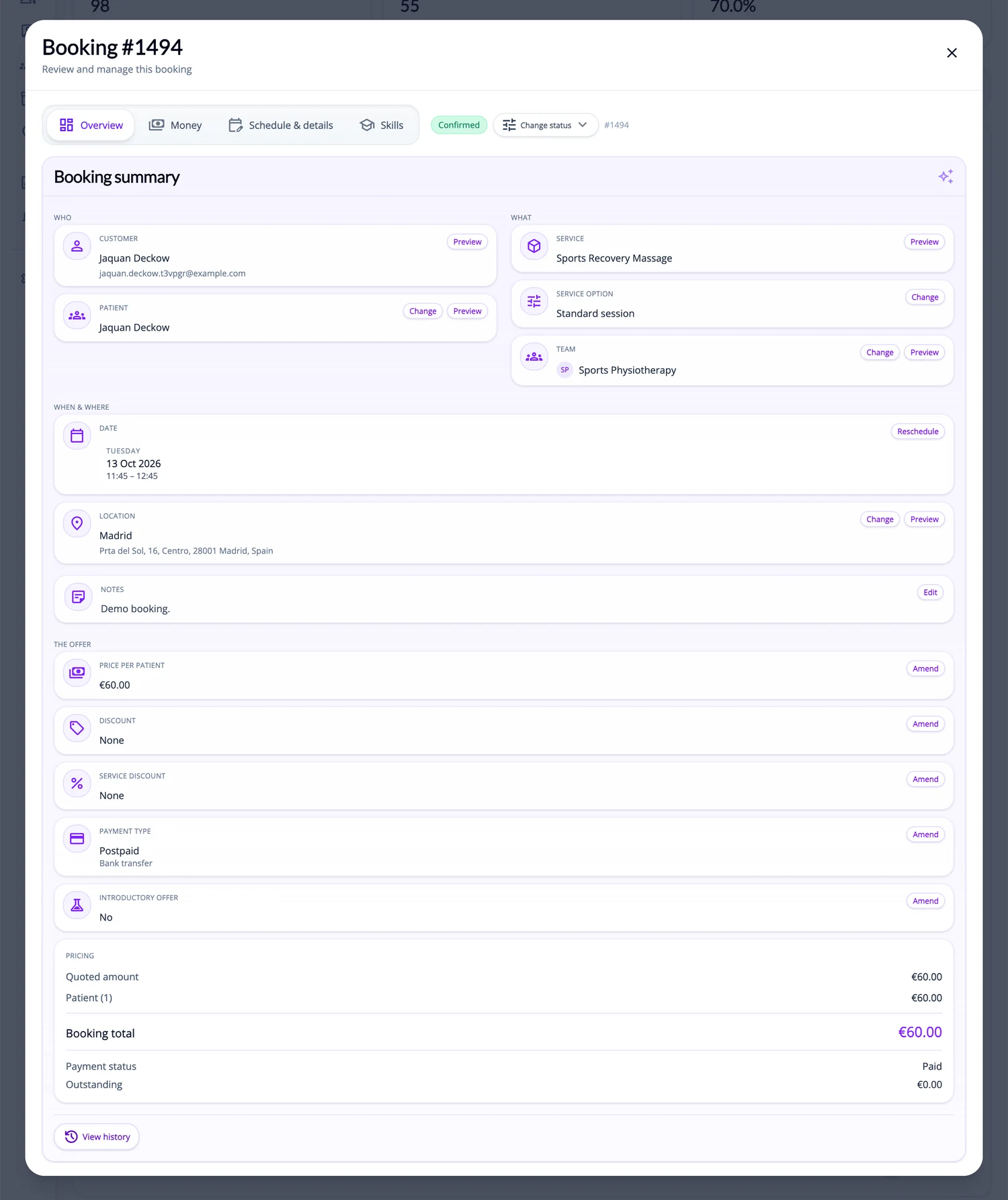
What ServEase coordinates
Service / Option
The appointment offering and selected variant.
Team
Staff delivering the service; customer choice is not always required.
Location
Studio, other venue or remote delivery context.
Receiver
Person receiving the appointment, where configured; may differ from the booker.
Resource
Not required in the example. A service that needs a specific room as well as staff is set up as a staff-and-resource service.
Relevant capabilities
Offer configurable appointment options, show relevant availability, support business-side and customer booking, and keep booking/customer/payment context accessible. Configured recurring appointments are also possible.
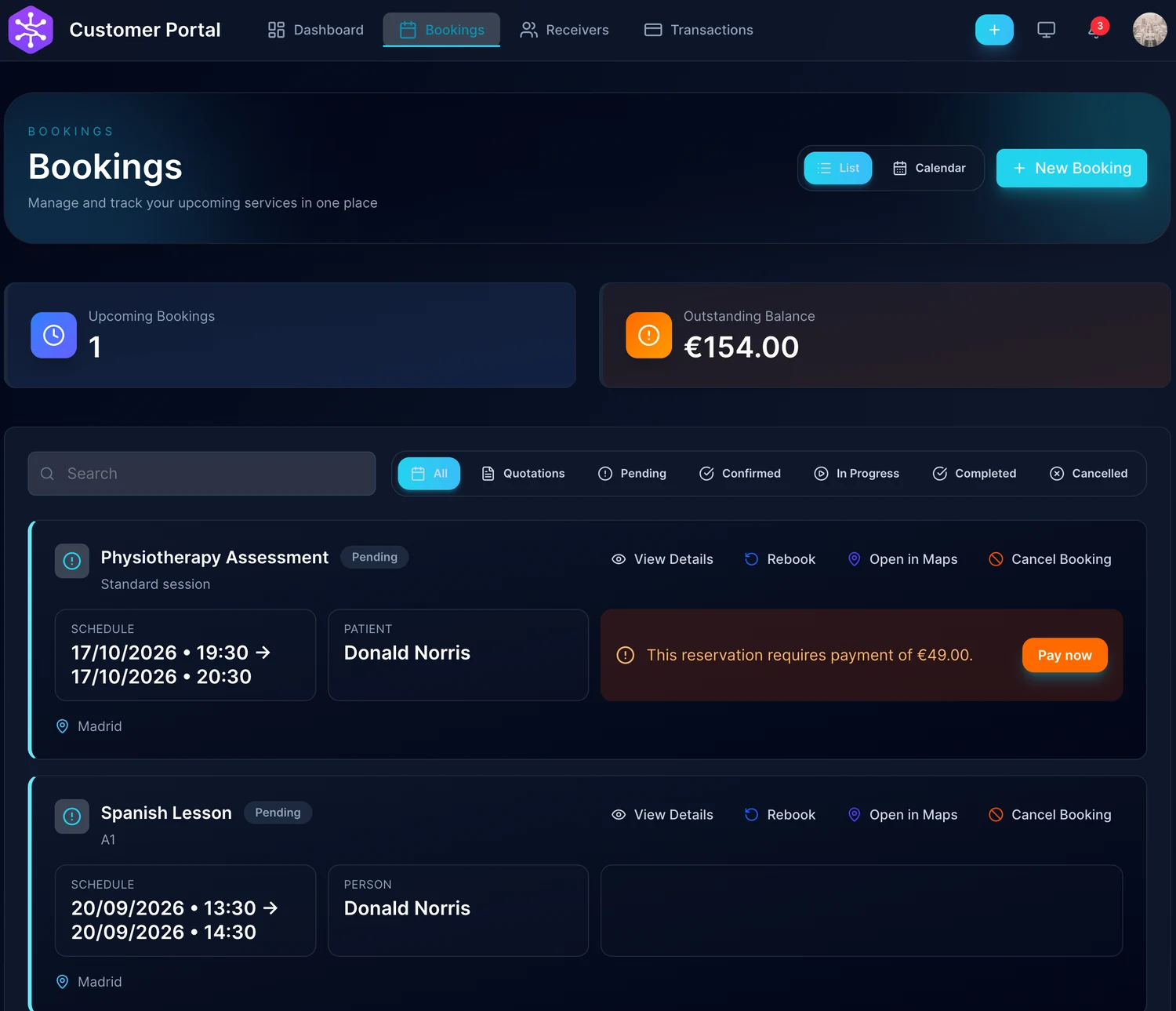
Limitations and fit
This page explains appointment scheduling and operations. It does not promise clinical records, treatment plans or diagnosis. Multiple people on one appointment do not automatically make it a shared-seat class. Booking creation does not mean payment or confirmation has succeeded.
Questions about this journey
Can customers choose a practitioner?
Where the service offers that choice, customers can select relevant staff availability. A service may instead have a single eligible team or an assignment resolved by the booking flow.
Can someone book for another person?
Yes, where the service asks for details of the person receiving the appointment—for example, a parent booking for a child. The person booking and the person attending remain distinct.
Can I take bookings myself?
Yes. Supported business-side booking lets staff create bookings with the access available to their role.
Do I need to set up a room for every appointment?
No. A location tells customers where the appointment happens. Reserving a specific room is a separate setup, used only when a service needs one.
Start with one appointment service
Set up an offering, its delivery team and actual availability, then review the booking journey your customers will use.
Try for free