How ServEase works
From your service offer to the work around every booking
Configure what customers can book, show the relevant availability, and manage the booking, people and payment status from connected workspaces. The details depend on whether you deliver a service, reserve a resource, or need both.
Follow one shared lifecycle, then explore how the requirements change across supported booking models. These are fictional explanatory examples, not a recorded end-to-end demonstration.
The starting point
Bookings scattered across calls, messages and memory
Requests arrive from everywhere, and someone has to piece together who, what, where and when. ServEase replaces that with one booking flow: set it up once, take bookings on your own website, and let everyone work on bookings from the workspace they need.
Without one system
- Requests arrive by phone, email and messages at all hours.
- Availability lives in a diary, a spreadsheet or someone’s head.
- Staff, rooms and vehicles are double-checked by hand.
- Customers call back to ask what they booked and what they owe.
With ServEase
- Services, staff, resources and locations are configured once.
- Customers choose and book through your branded Widget or Customer Portal.
- Each submission is rechecked against current availability.
- Admin, assigned staff and customers each see the booking in their own workspace.
The booking lifecycle
Set up
Set up what you offer
Describe your services, staff, resources and locations once, then choose what customers can see and book.
Setup
Define what customers can book
Add your business details, services and options. Connect staff where required, supported resources where required, and the relevant locations. Set availability, payment rules and customer-facing presentation.
Configuration does not imply automatic publication or live AI setup.
What you configure
Business detailsServices & optionsStaffResourcesLocationsAvailabilityPayment rulesPresentationExplanatory diagram, not a product screen
Your Widget
Make the intended offering available
Choose the offerings customers can see in your Widget or Customer Portal. Relevant choices and availability come from the configured service relationships and rules.
A preview does not publish the offering or reserve a time.
Where customers book
SetupWidget on your websiteCustomer PortalExplanatory diagram, not a product screen
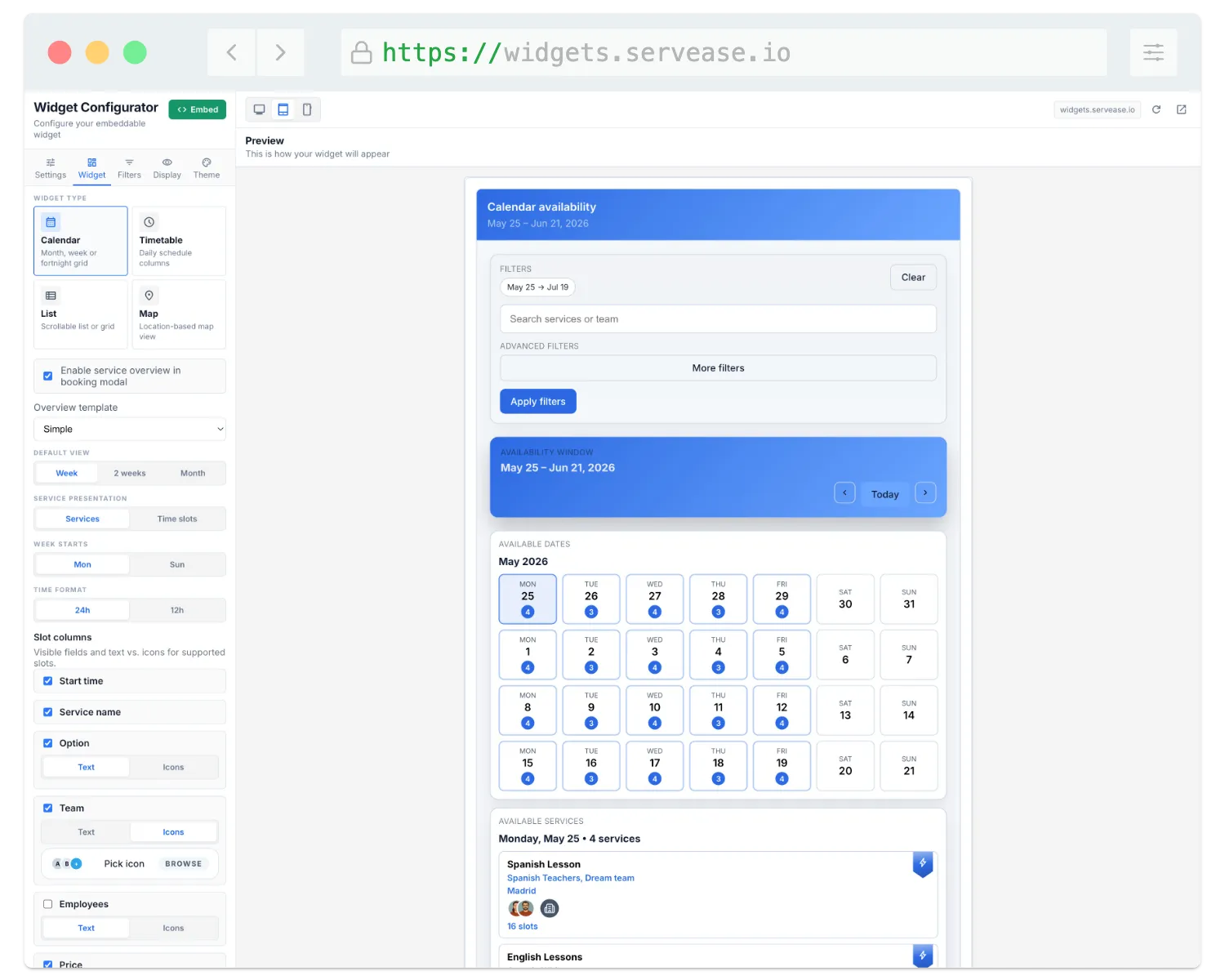
Product illustrationHistorical product illustration: Widget presentation controls. This does not prove publication or booking submission.
Your brand on the outside
Your website. Your brand. ServEase underneath.
Three fictional businesses, several completely different customer-facing views — all using genuine ServEase Widgets. Match the booking experience to the business instead of sending customers to a generic third-party page.
Studio · Timetable · minimal editorial styling
Book
Customers book on your site
Customers choose only what their booking needs. ServEase rechecks it on submission and records the booking with its own status, kept separate from payment.
Customer choices
Customers choose the details that matter
Customers choose a service and option, then a time or dates. Staff, resource, location and participant choices appear only where the configured journey needs them.
Not every booking uses every selector. The booker may differ from the person receiving the service.
Shown only where the journey needs it
ServiceOptionTime or datesStaffResourceLocationParticipantsExplanatory diagram, not a product screen
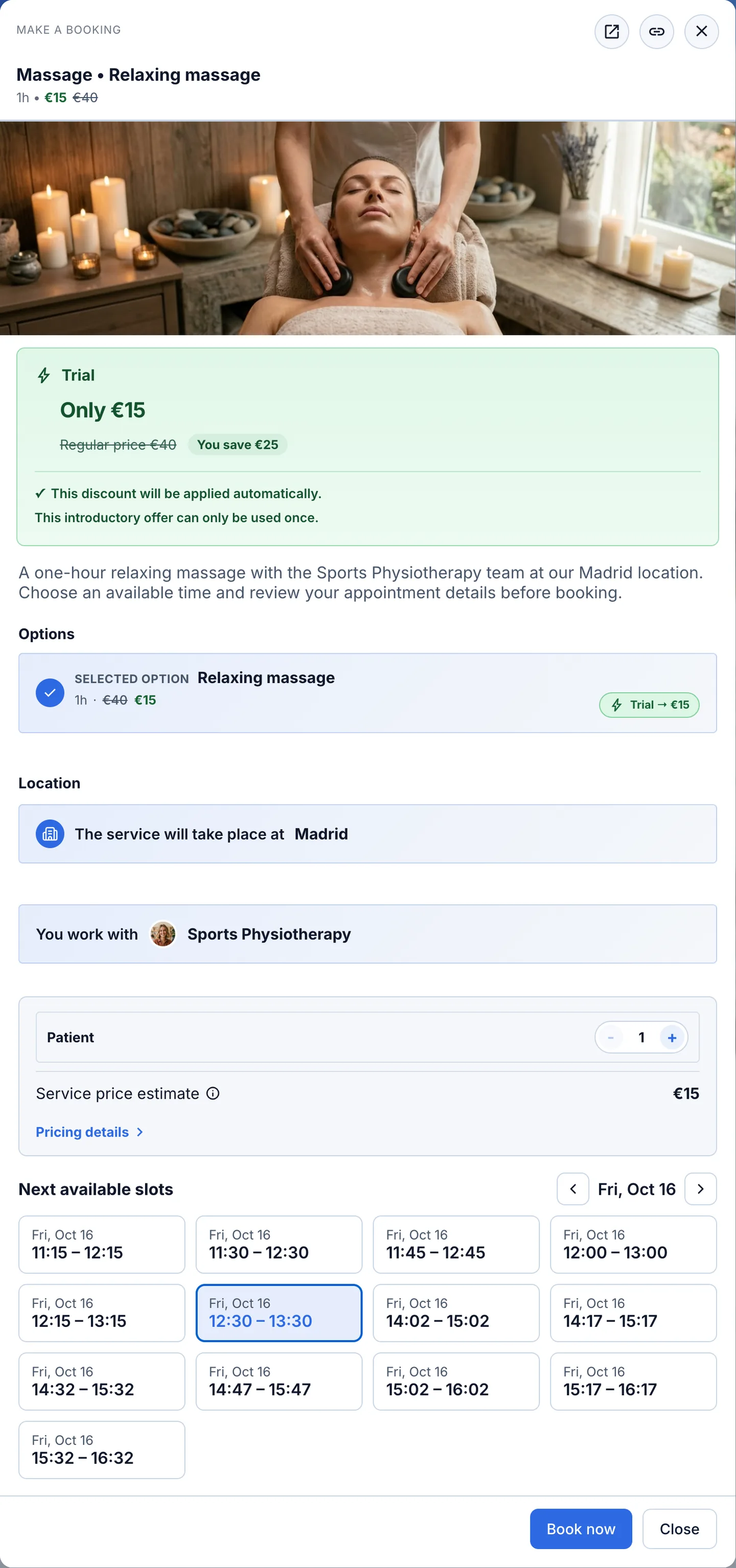
Product screenshot · demo dataThe booking widget: the customer picks an option and an available time. The ServEase owner confirms this selection became demo booking #1545, which the next screenshots follow.View full screenshot 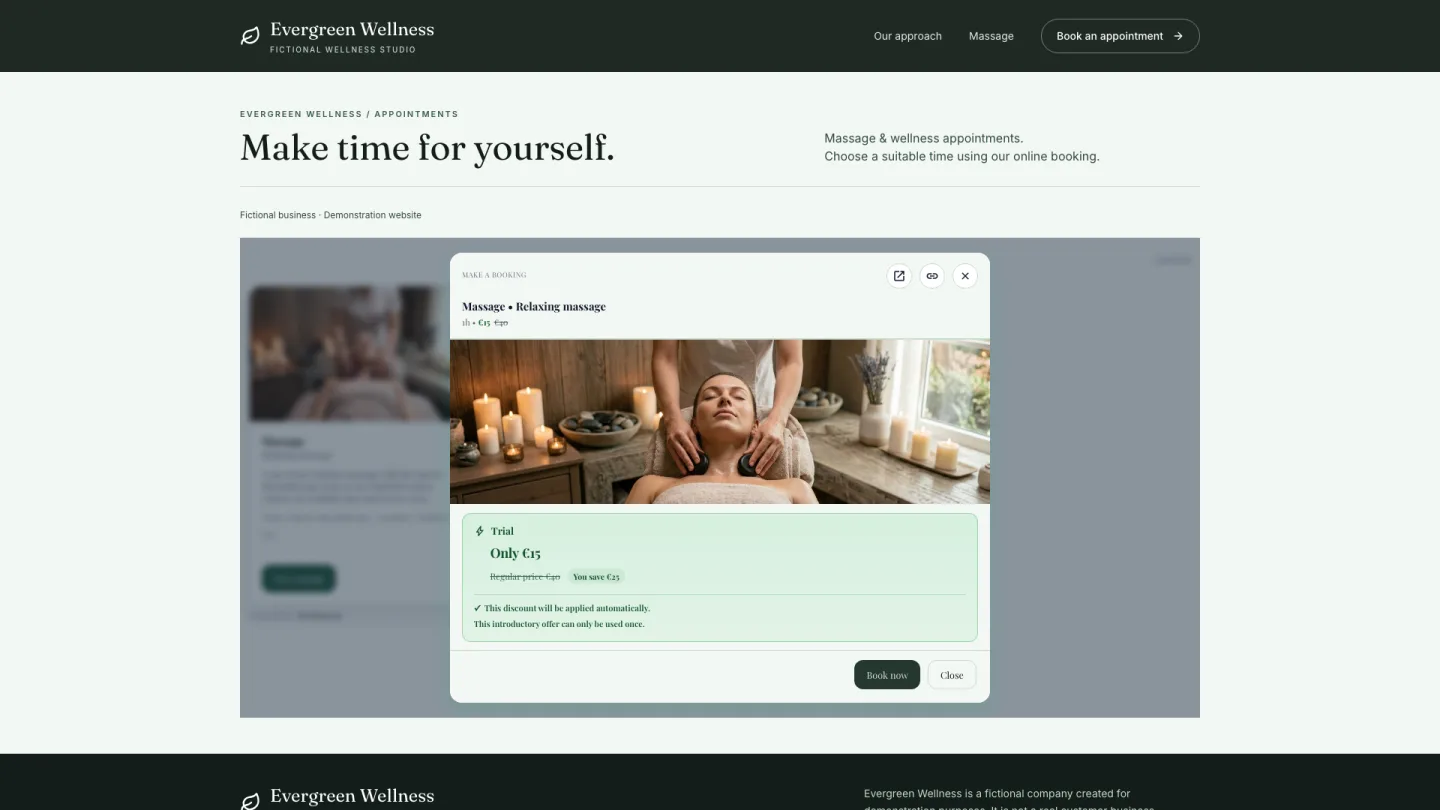
Product illustrationFictional demonstration website with a genuine Widget, shown separately: pre-submit discovery only, not part of example booking #1545. Availability check
Check the required pieces together
Submission rechecks the current service, option, staff or resource, location, availability, duration, buffers and relevant capacity or eligibility requirements.
Displayed availability is advisory, not a guaranteed reservation. Booking validation may reject an option that is no longer available.
Rechecked on submission
Service & optionStaff or resourceLocationAvailabilityDuration & buffersCapacity & eligibilityBooking createdExplanatory diagram, not a product screen
Booking created
Record the booking and its real status
A successful submission becomes a booking record. Price and payment follow the configured offering. Keep the booking lifecycle and financial state distinct when deciding what happens next.
Created does not mean Confirmed. Created does not mean Paid. A booking can still need acceptance, a quotation or payment. Notifications follow the relevant events and configuration.
Booking lifecycle
CreatedMay need acceptance or a quotationConfirmedFinancial state, tracked separately
Price from the offeringMay need paymentPaidExplanatory diagram, not a product screen
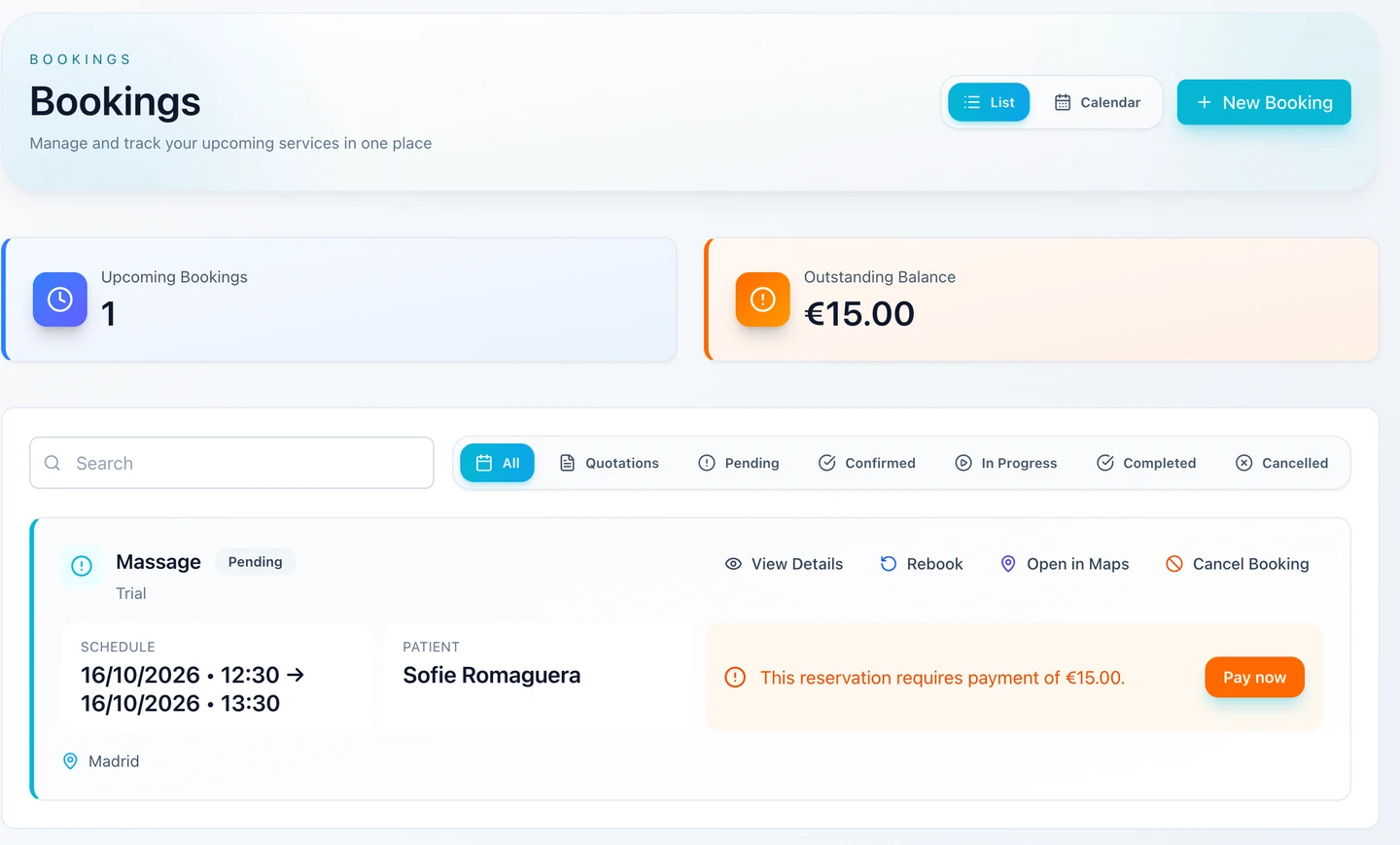
Product screenshot · demo dataCustomer Portal straight after the customer booked: demo booking #1545 exists but is Pending, and €15.00 is still due. Created does not mean Confirmed or Paid.View full screenshot Example booking #1545 in Admin
Two tabs of the same booking record: the overview, and the Money tab where its charges and payments are tracked.
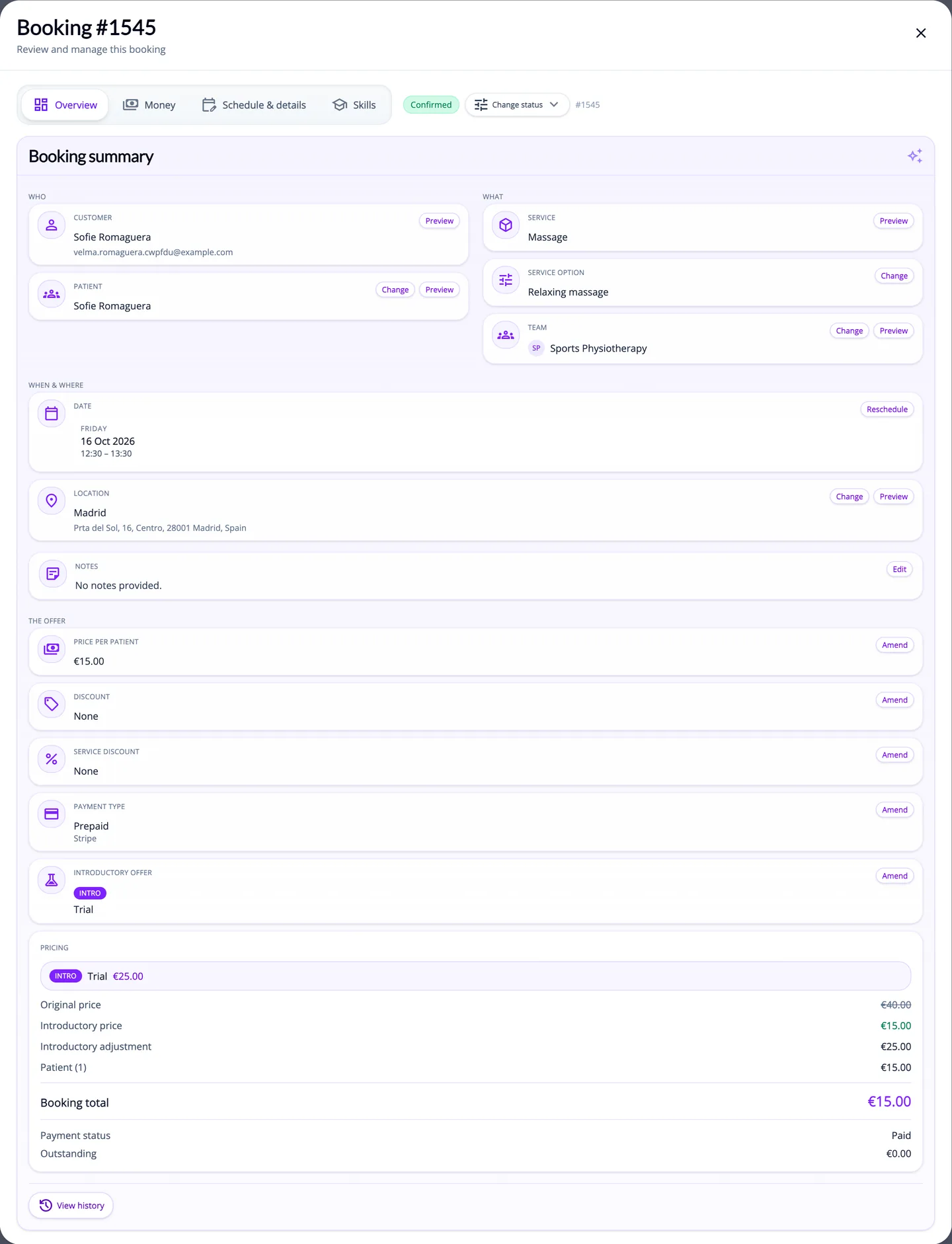
Product screenshot · demo dataThe same booking, #1545, in Admin: service, team, time, location and pricing in one record.View full screenshot 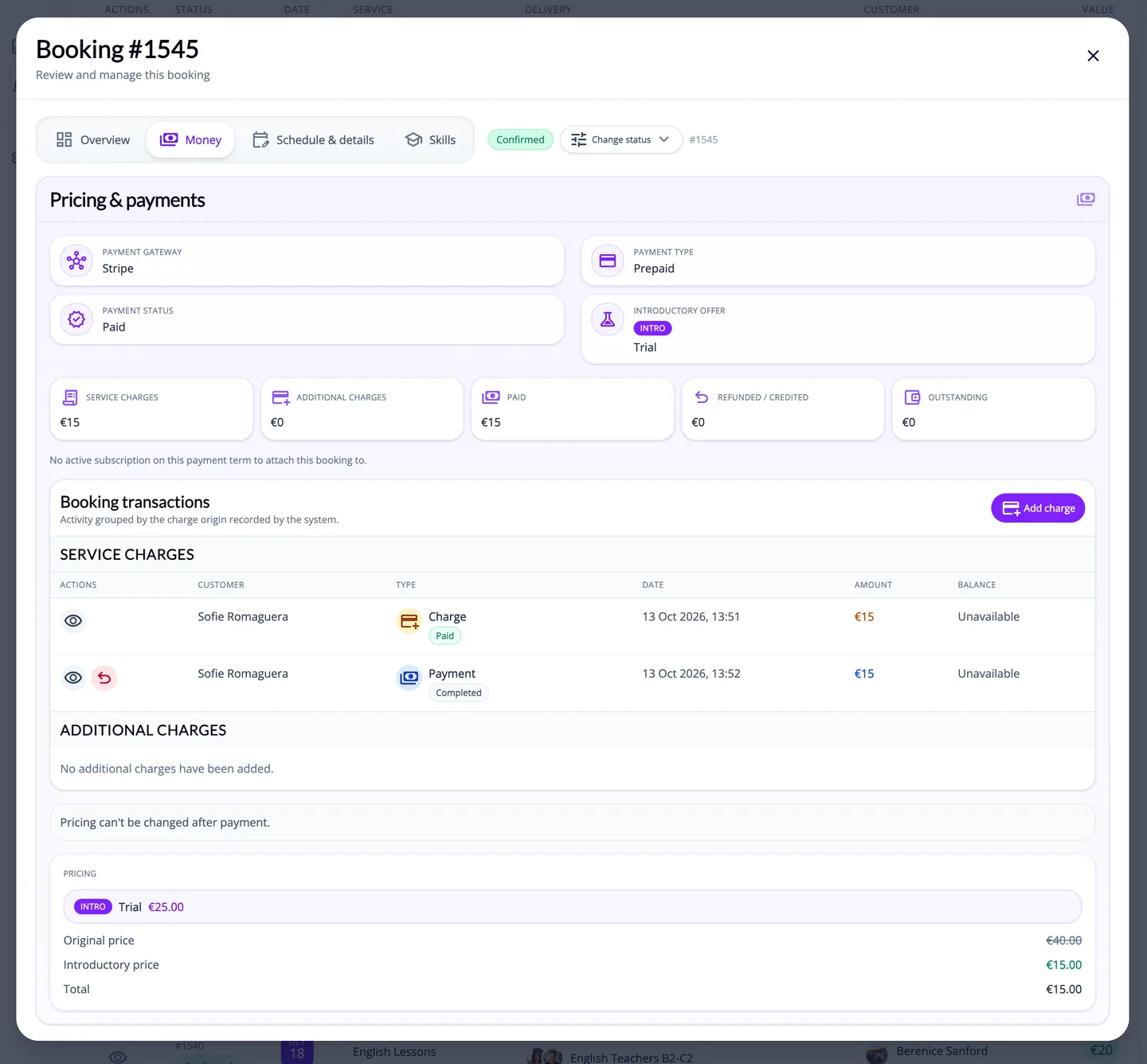
Product screenshot · demo dataThe Money tab of booking #1545: charges and payments are tracked separately from the booking status.View full screenshot
Run
Run the work and let customers return
Your team works from Admin and the Employee Portal. Customers come back to the Customer Portal for their own bookings and payments.
Admin & staff
Run the work from the right workspace
Use Admin Calendar and booking details to review the service, assignments, customer context and transactions. Staff with supported Employee Portal access see bookings assigned to their teams. Available reporting supports ongoing operations.
Employee access is scoped. A calendar illustration is not evidence that an earlier customer screen created that booking.
Where the work happens
Admin
Admin CalendarBooking detailsTransactionsReportsEmployee Portal: assigned teamsExplanatory diagram, not a product screen
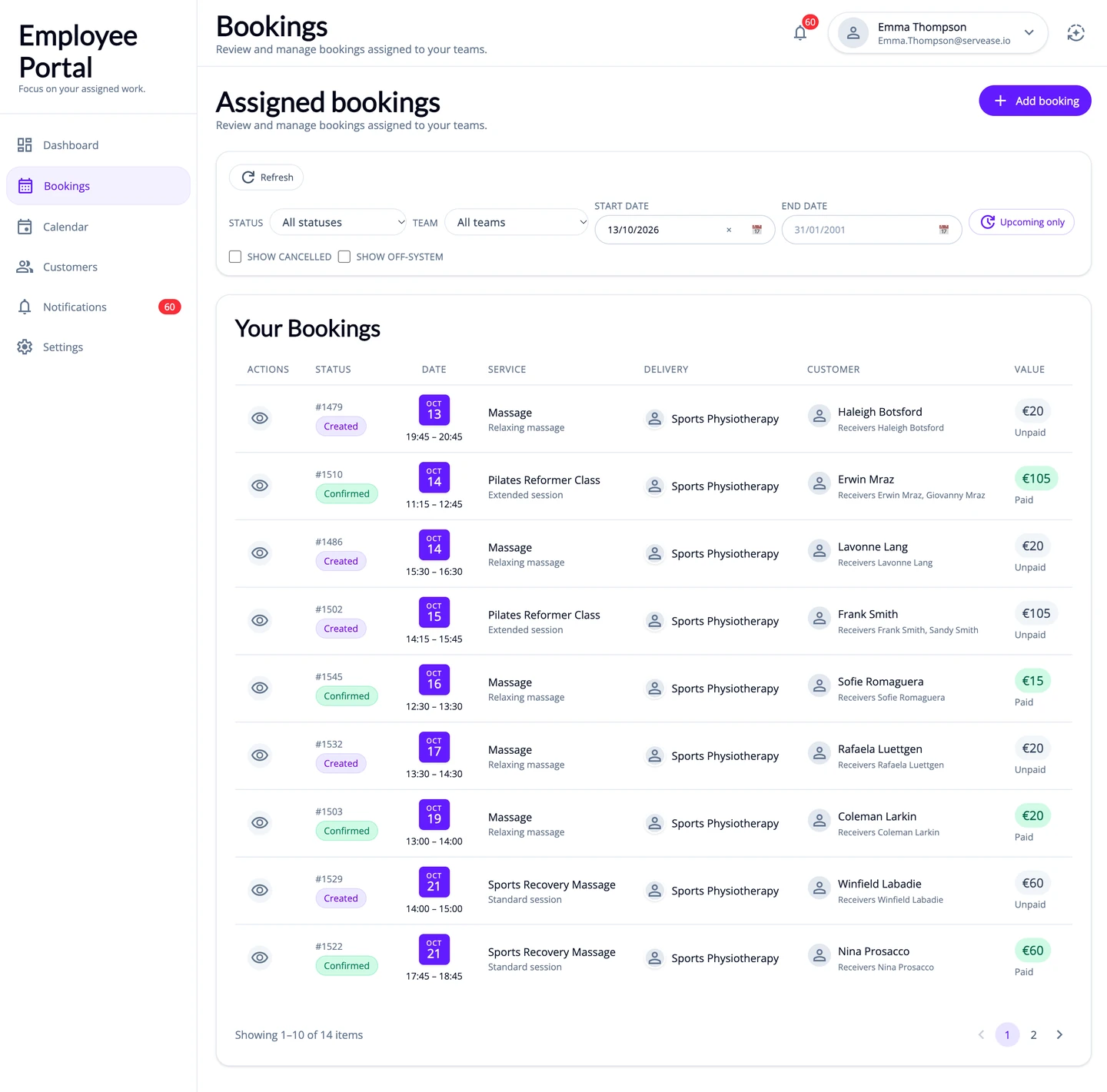
Product screenshot · demo dataEmployee Portal: a staff member’s list of assigned bookings, with booking status and payment status side by side.View full screenshot 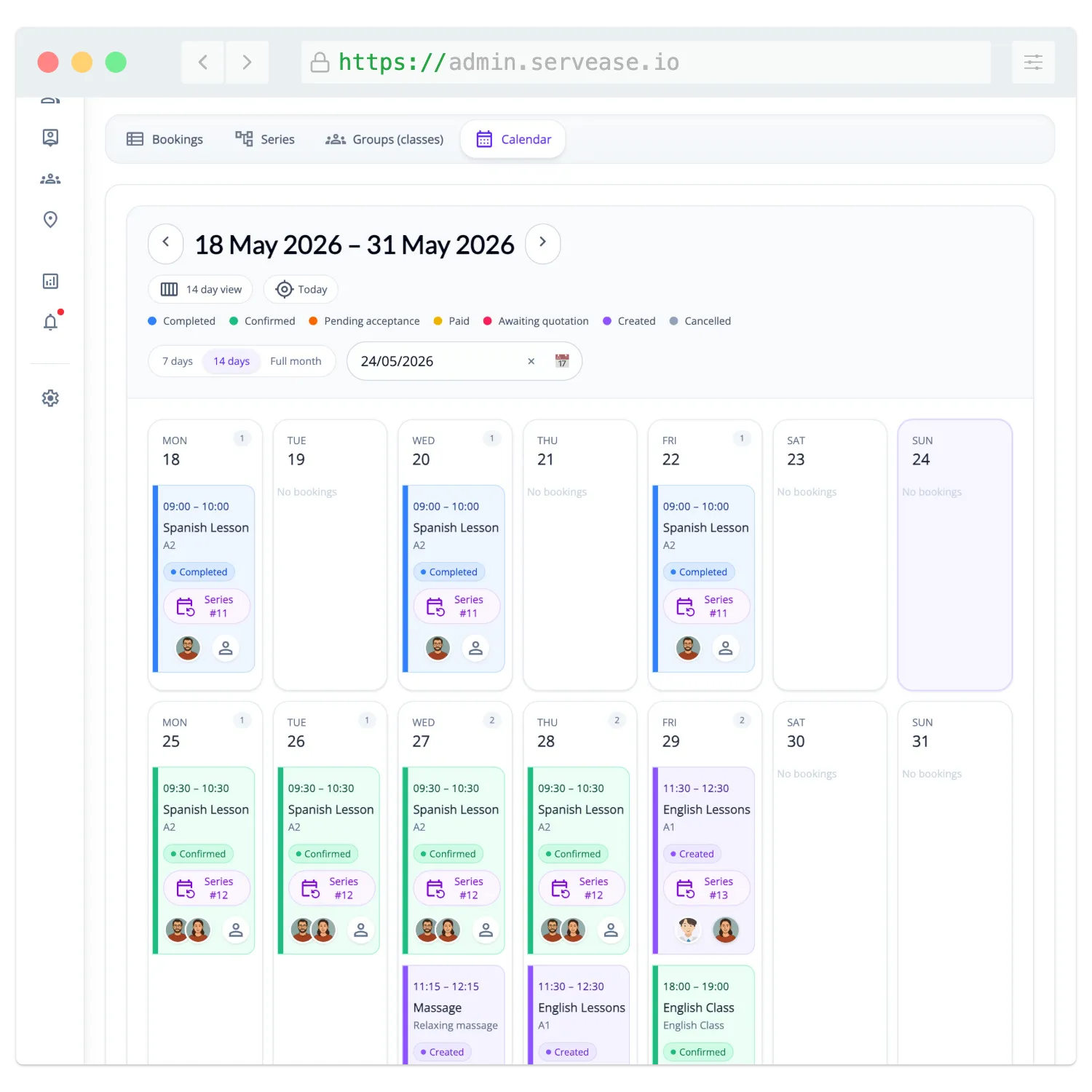
Product illustrationSeparate historical Admin Calendar illustration. It is not part of example booking #1545 or the Employee Portal example above. Customer Portal
Give customers a place to return
Customers can review their own bookings and relevant participant details in the Customer Portal, rebook, use eligible booking actions, and inspect financial history or pay amounts due where supported.
Cancellation, confirmation, payment and other actions depend on booking state, ownership and configured policy. No universal refund or rescheduling promise.
In the Customer Portal, where supported
Customer Portal
Own bookingsParticipant detailsRebookEligible actionsFinancial historyPay amounts dueExplanatory diagram, not a product screen
Separate examples from one demo account, not one continuous booking.
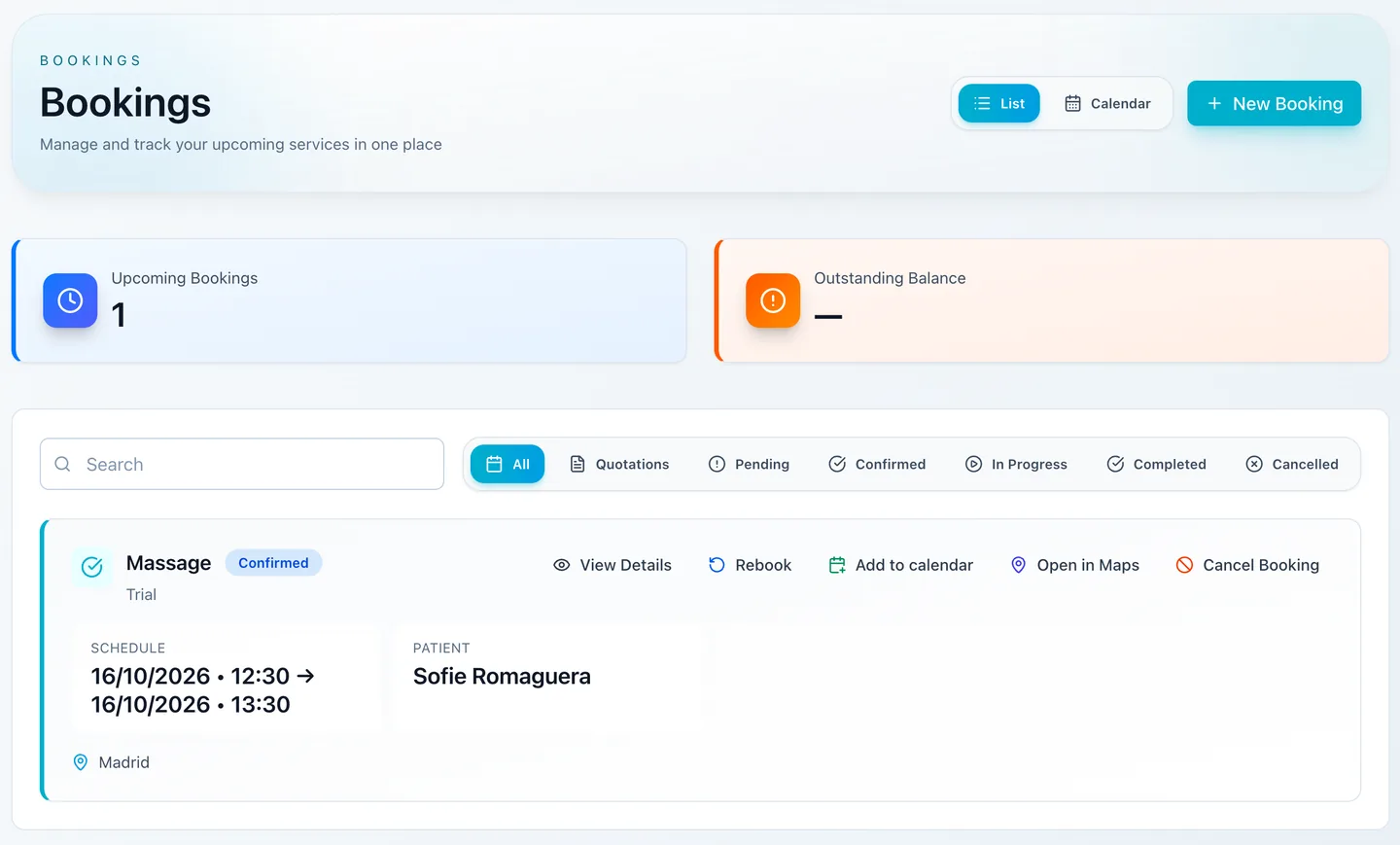
Product screenshot · demo dataCustomer Portal bookings list: each booking shows its schedule, patient, location and status. Here the booking has already been confirmed; a newly created booking is not automatically confirmed or paid.View full screenshot 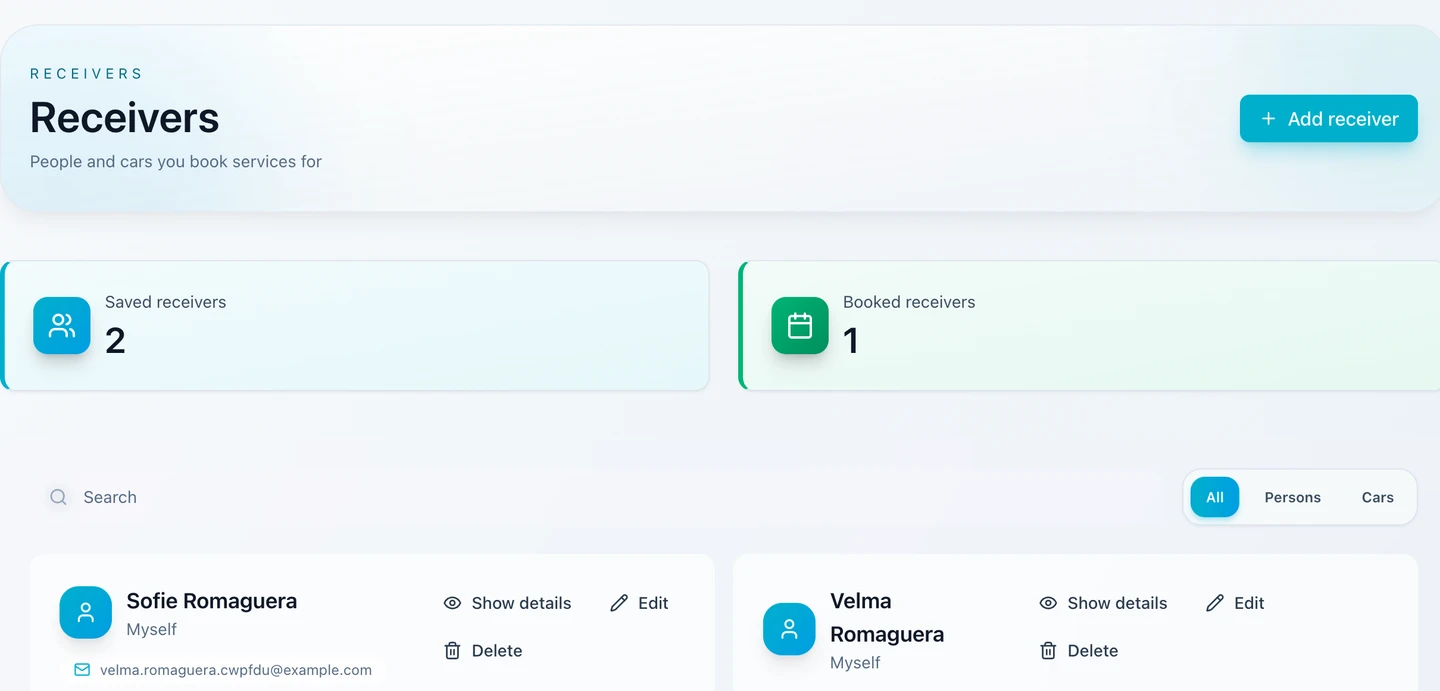
Product screenshot · demo dataCustomer Portal Receivers: the people and cars a customer books services for, saved with their details.View full screenshot 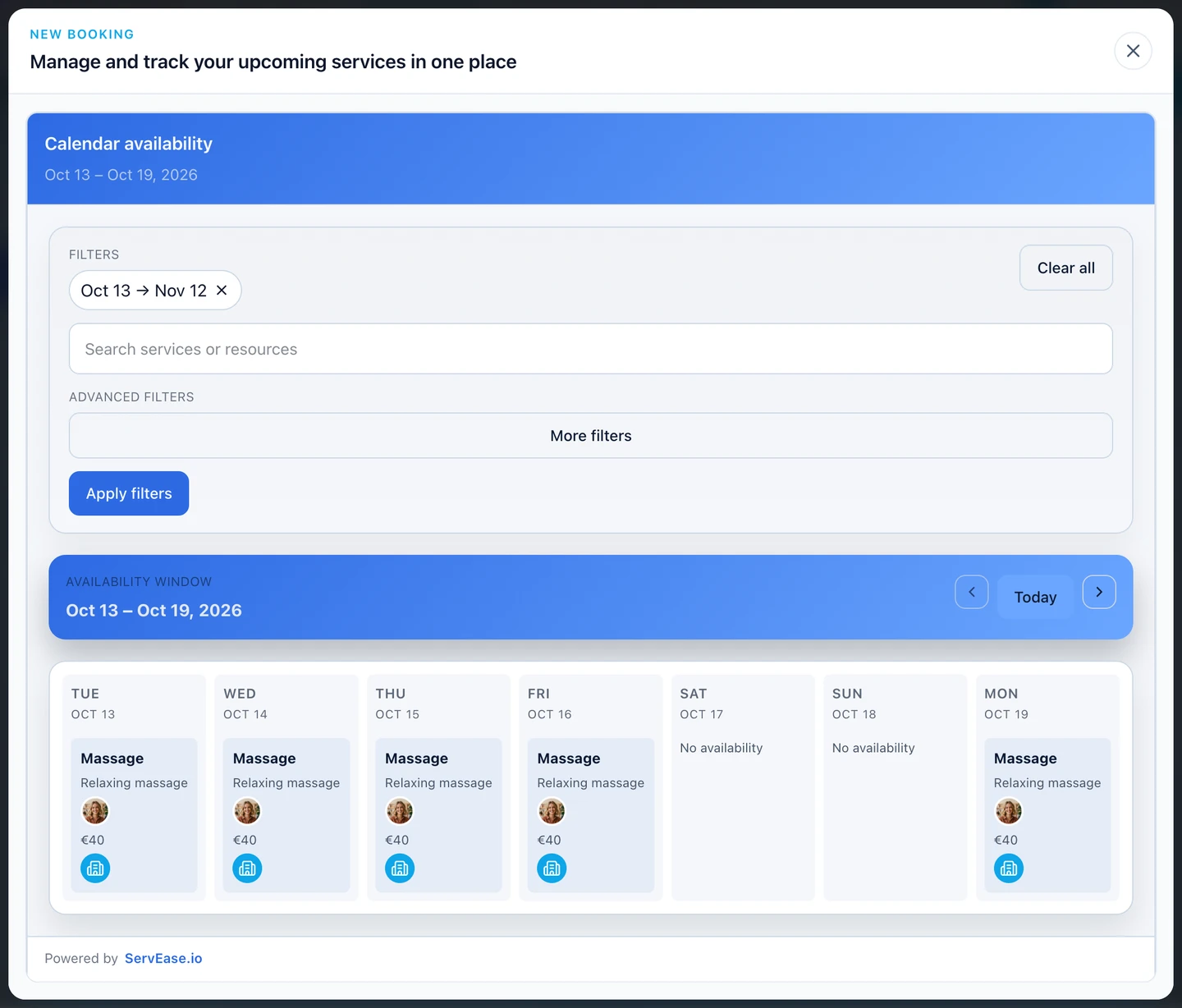
Product screenshot · demo dataMaking another booking in the Customer Portal: the customer picks a time from the calendar of available slots.View full screenshot 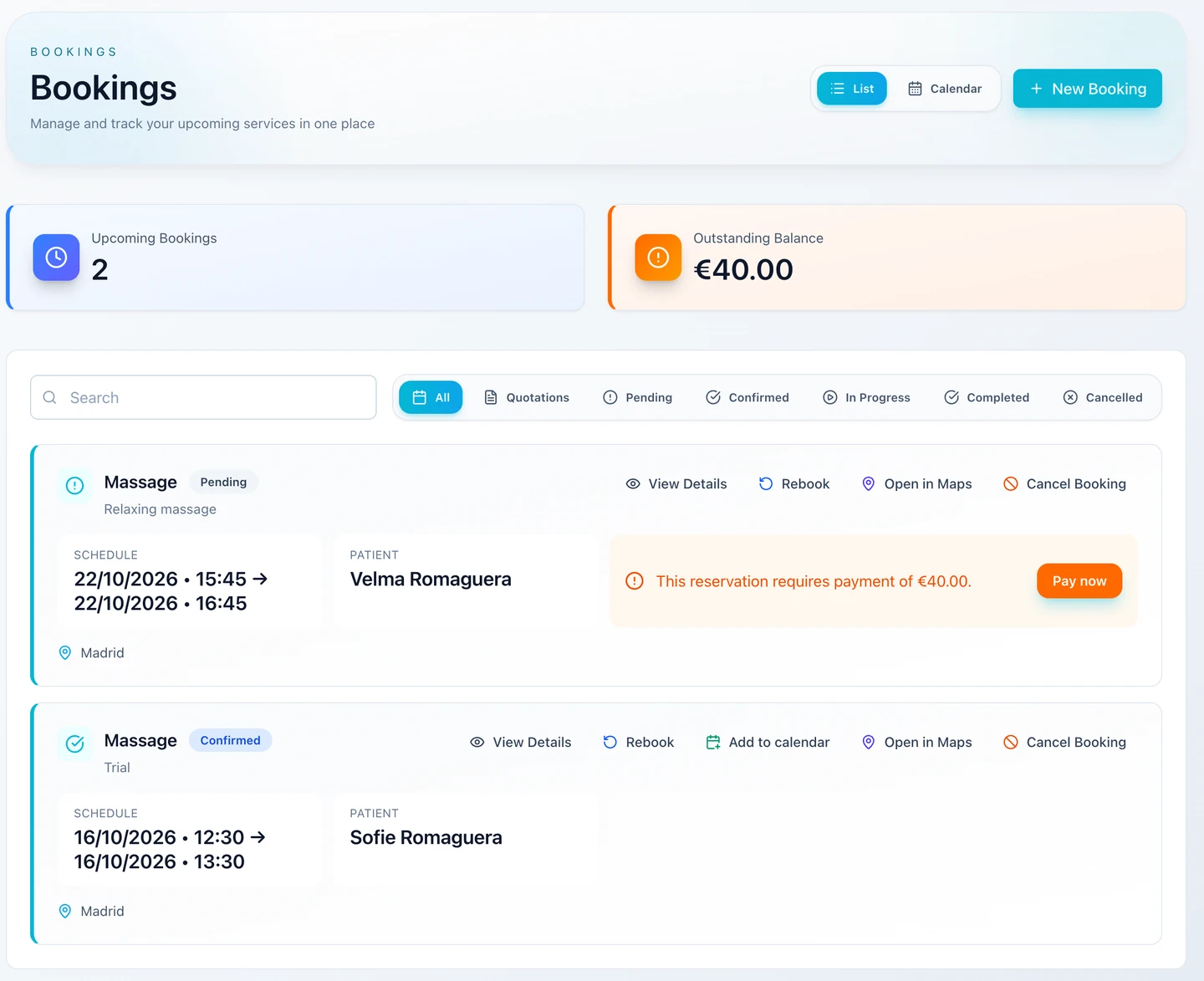
Product screenshot · demo dataActions follow each booking’s state: the Pending booking asks for payment, while the Confirmed one can also be added to a calendar. The Pending booking is a separate booking, #1546.View full screenshot 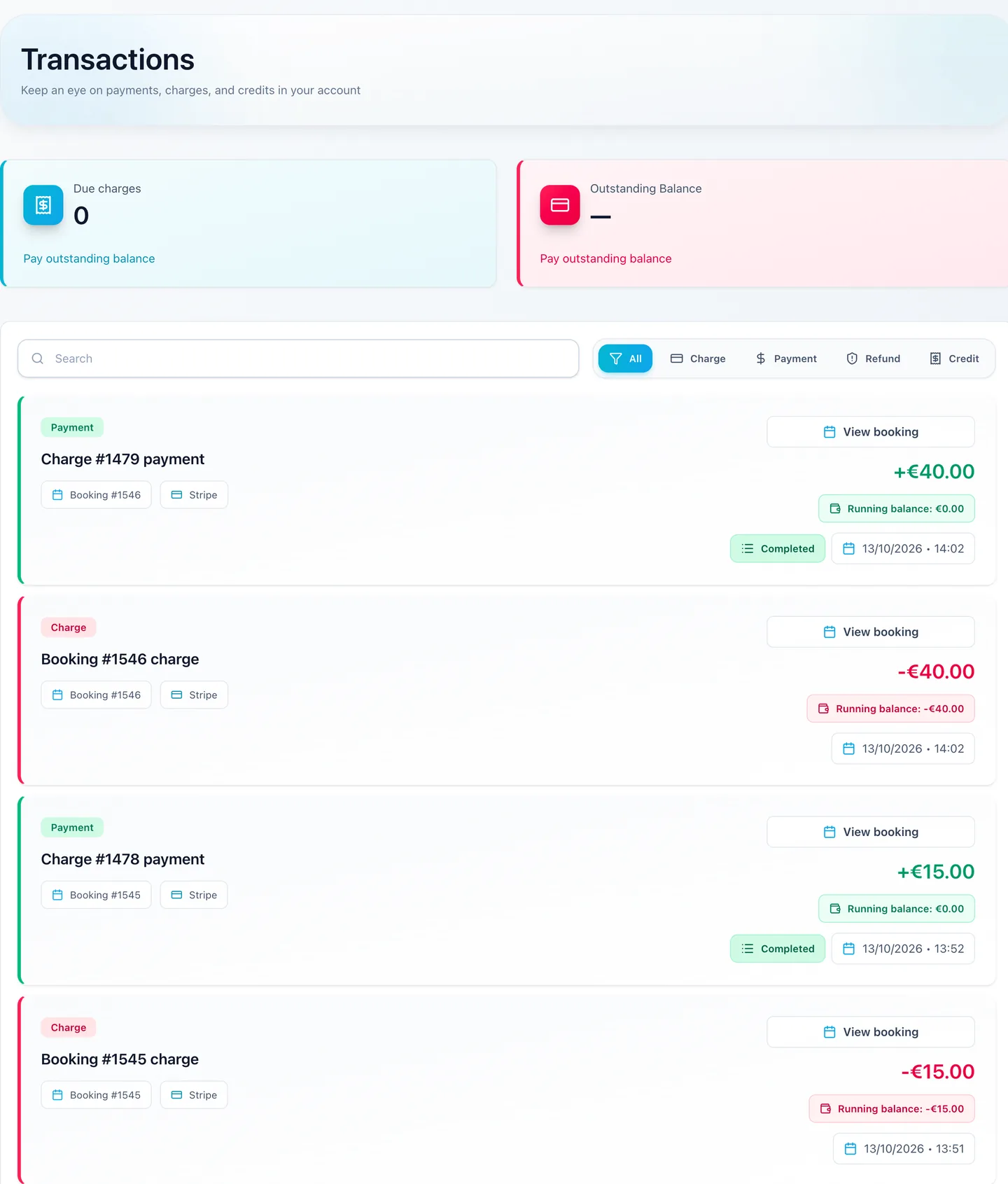
Product screenshot · demo dataCustomer Portal transactions: every charge and payment links to its booking, here #1545 and the separate booking #1546.View full screenshot 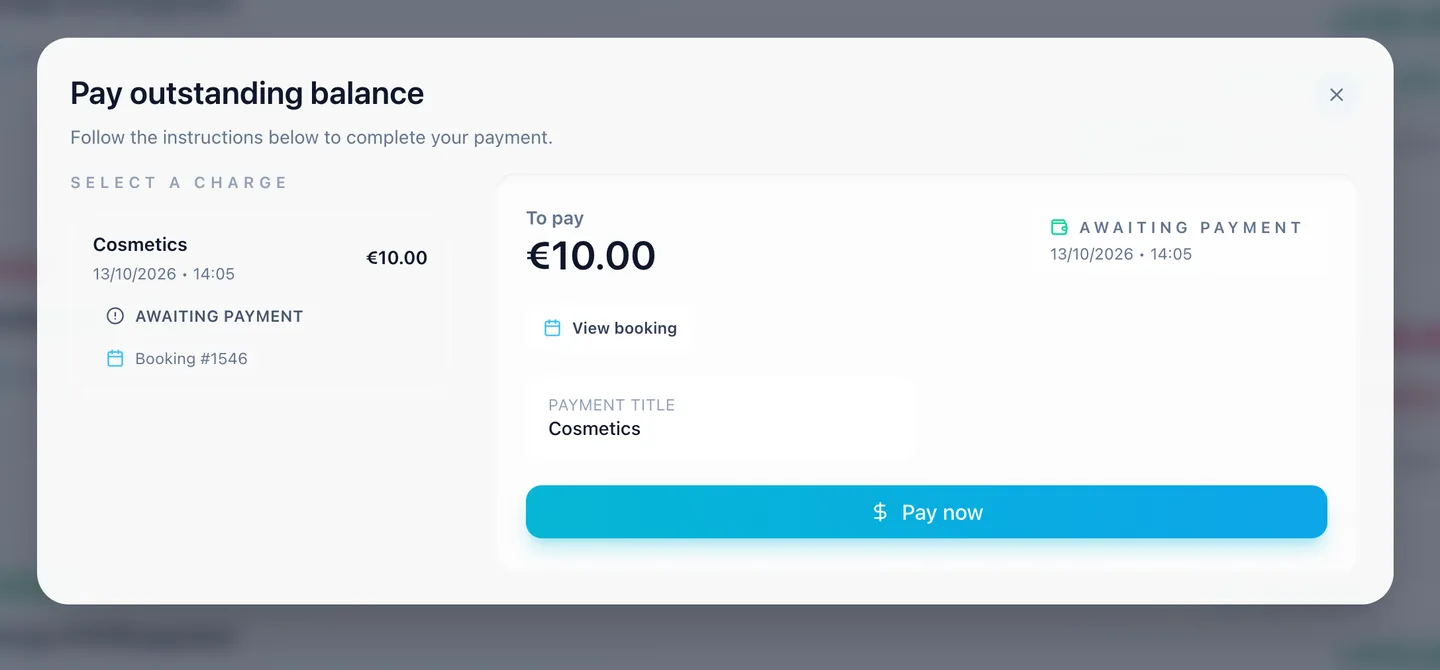
Product screenshot · demo dataA separate booking (#1546), not #1545: an extra €10 charge added after booking waits for the customer to pay it in the portal.View full screenshot
Fictional explanatory example
Choose an example
Open one example at a time to see how the same seven stages apply to a different booking model.
Massage appointmentTeam-ledAppointment
Setup
Define what customers can book
An independent massage studio offers a Team-led appointment. Resources are optional only where the supported offering requires them.
Your Widget
Make the intended offering available
The studio exposes its configured massage option, venue and available service times.
Customer choices
Customers choose the details that matter
The customer chooses an option and suitable time, with staff and the person receiving the service where relevant.
Availability check
Check the required pieces together
Team availability, venue, duration, buffers and applicable participant limits must fit.
Booking created
Record the booking and its real status
A valid appointment has an actual lifecycle status and separate financial state; no automatic Paid or Confirmed outcome.
Admin & staff
Run the work from the right workspace
Admin reviews the appointment and assigned staff context. Employee access remains scoped to assigned teams.
Customer Portal
Give customers a place to return
The customer reviews the appointment and eligible actions in their portal. This is booking context, not clinical records.
Swimming classTeam-ledGroup class
Setup
Define what customers can book
The school configures an instructor/team, pool Location and shared session places. The pool is not automatically a Room or Pitch Resource.
Your Widget
Make the intended offering available
Customers see scheduled swimming sessions and advisory remaining participant places.
Customer choices
Customers choose the details that matter
A parent can be the booker while the swimmers are the participants. One booking may include permitted multiple participants.
Availability check
Check the required pieces together
Submission rechecks shared session capacity and per-booking limits; Group/Class is Team-led, not Resource-backed.
Booking created
Record the booking and its real status
The valid booking consumes participant places in the session, with its actual payment and booking states.
Admin & staff
Run the work from the right workspace
The school reviews session bookings and participant context; shared places are not room-rental inventory.
Customer Portal
Give customers a place to return
The booker reviews their bookings and supported participant records and actions.
Home cleaning visitTeam-ledAppointment
Setup
Define what customers can book
The business configures Team-led cleaning, on-site coverage, available hours and any supported commute charges.
Your Widget
Make the intended offering available
Only eligible service choices and configured availability are exposed; customer-address information matters to coverage.
Customer choices
Customers choose the details that matter
The customer selects the cleaning option, customer address and a suitable visit time.
Availability check
Check the required pieces together
Coordinates, coverage radius, travel-time limit and configured travel charges are checked alongside service availability.
Booking created
Record the booking and its real status
The booking records the service visit and customer address with the calculated price and actual financial state.
Admin & staff
Run the work from the right workspace
Staff review the confirmed address in the booking. Coverage and travel estimates are not dispatch or live route optimisation.
Customer Portal
Give customers a place to return
The customer reviews the visit and eligible portal actions under the configured policy.
Meeting-room rentalResource-backedRental
Setup
Define what customers can book
The business configures a Resource-only Room Rental and suitable time-based option. The Room has a fixed Resource Location; no Team is required.
Your Widget
Make the intended offering available
Room hours, time off, bookings and configured service restrictions determine available intervals.
Customer choices
Customers choose the details that matter
The customer chooses the room, rental option and time window, with booking details where required.
Availability check
Check the required pieces together
The concrete Room and fixed Location must fit the entire interval, duration, buffers and relevant room constraints.
Booking created
Record the booking and its real status
The valid reservation records the Room interval. Room capacity does not create individually sold class places.
Admin & staff
Run the work from the right workspace
Admin reviews the concrete Room and its reservation; service location selection cannot relocate the Resource.
Customer Portal
Give customers a place to return
The customer reviews the reservation and payment context. Room hire does not imply Equipment Resource support.
Staffed vehicle serviceTeam + ResourceStaffed service
Setup
Define what customers can book
The operator configures a service requiring both a Team and Vehicle Resource, with compatible locations and schedules.
Your Widget
Make the intended offering available
A service time is bookable only when the eligible staff and vehicle fit together.
Customer choices
Customers choose the details that matter
The customer chooses the service option, configured location and time, and relevant passenger details. Not every journey exposes individual staff/vehicle pickers.
Availability check
Check the required pieces together
Submission checks both Team and Vehicle availability; a conflict on either side can prevent the booking.
Booking created
Record the booking and its real status
The valid booking persists both assignments. This is a staffed service, not self-drive rental.
Admin & staff
Run the work from the right workspace
Admin reviews both staff and vehicle. Rental-only driver fees, mileage and pickup/return controls are not inferred from the Vehicle.
Customer Portal
Give customers a place to return
The customer reviews service details and eligible actions. No arbitrary-route, flight-tracking or dispatch promise.
Cabin stayResource-backedOvernight stay
Setup
Define what customers can book
The business configures an Accommodation Resource at its fixed Location, nightly options and guest rules. Team+Accommodation/Pitch is unsupported v1.
Your Widget
Make the intended offering available
Available stays reflect resource occupancy, availability and configured operational timing.
Customer choices
Customers choose the details that matter
The customer chooses arrival/departure dates and supplies required guest counts/composition.
Availability check
Check the required pieces together
Tenant-local calendar nights, timing, resource capacity and guest rules are checked. Guests are not shared class places.
Booking created
Record the booking and its real status
The valid booking records the Accommodation, dates and guest composition with actual payment/lifecycle states.
Admin & staff
Run the work from the right workspace
Admin reviews stay occupancy and financial context. No OTA, housekeeping or full PMS functionality is implied.
Customer Portal
Give customers a place to return
The customer reviews their stay and eligible actions. Not every guest needs a separate account.
Fit and limitations
Displayed availability is advisory. Submission rechecks current authoritative constraints.
Created is not Confirmed or Paid. Payment and notification behavior follow configuration.
A Location identifies delivery context; a Resource is the concrete asset reserved. A customer car is not a Vehicle Resource.
Classes are Team-led shared capacity. Pool venue does not imply Room/Pitch reservation. Resource-backed Group/Class is unsupported.
Equipment/Custom Resources and daytime Pitch/Court rental are not supported here. Resource does not always mean Rental.
Customer actions depend on ownership, state and policy. No universal refund/reschedule, clinical-record, dispatch optimisation, OTA/PMS or unreleased AI setup promise.
Questions about the booking journey
Is a location the same as a resource?
No. A location describes where a service happens. A resource is the concrete room, vehicle or accommodation reserved by the booking.
Does creating a booking mean payment succeeded?
No. Booking lifecycle and payment state are distinct. Created does not mean Confirmed or Paid.
Do customers always choose staff and resources?
Only where the service exposes those choices. Some requirements are preselected or resolved by the booking flow; many offerings need only staff or only a resource.
Can staff create bookings too?
Supported business-side booking flows allow this within the access available to the staff role.
Start with one real offering
Choose the operational journey closest to your business, or try ServEase with one service and its actual requirements.
Try for free